Plain-English technology

Useful technology, explained without the noise.

Life Me Tech publishes practical guides for AI, phones, apps, online safety and the digital tools you use every day.

Explore latest guidesHow we work

Sunday, 18 October 2026

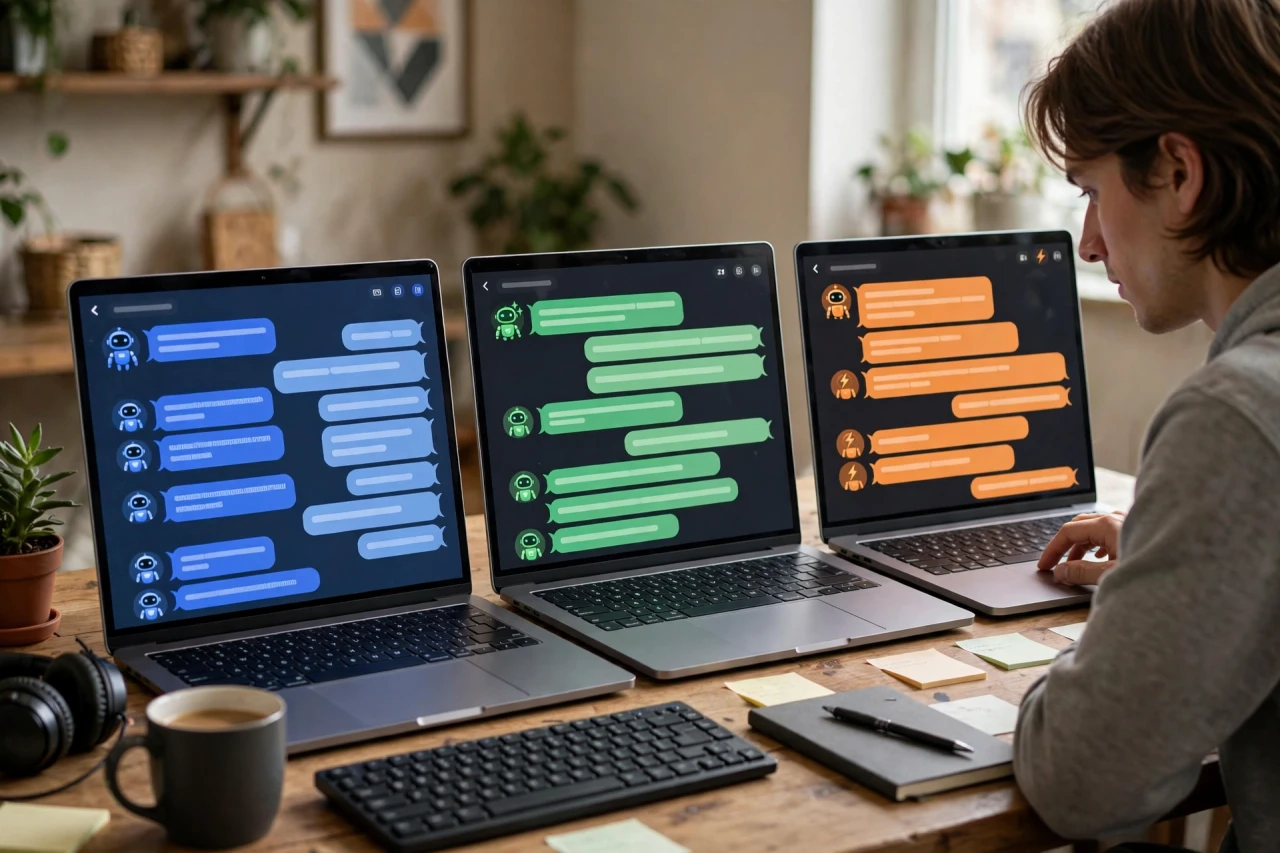
I Asked ChatGPT, Gemini and Claude the Same 7 Questions — One Was Clearly Better

Everyone has a favourite AI chatbot – and everyone is convinced theirs is the smartest. So I stopped arguing and ran a proper test instead: the same seven real-world tasks, fed to ChatGPT, Google Gemini and Anthropic’s Claude, back to back. The results genuinely changed which one I open first every morning.


Test 1: Writing a Professional Email

I asked each bot to draft a follow-up email after a job interview – polite, confident, under 150 words. All three produced usable drafts in seconds, but Claude’s stood out: it sounded like an actual human wrote it, not a template. ChatGPT’s version was solid but a touch stiff. Gemini’s was the shortest, which is fine if you like editing down rather than up. Winner here: Claude, by a clear margin.

Test 2: Summarising a Long Article

Next I pasted in a 4,000-word article about the housing market and asked for five bullet points. This is where Gemini shone – its summary caught two nuances the others missed, and it offered to turn the summary into a table without being asked. ChatGPT did a decent job but skipped the article’s main criticism. Claude’s summary was accurate but oddly long. If you summarise documents all day, Gemini earned its place.

Test 3: Fixing a Bit of Broken Code

I’m no programmer, so I grabbed a small broken Python script from a beginner tutorial and asked each bot to find the bug. ChatGPT found it instantly and – more usefully – explained why it broke in plain English. Claude also found it but buried the answer in explanation. Gemini spotted the bug too, then confidently suggested a "fix" that introduced a new error. For coding help, ChatGPT remains the one to beat.

Test 4: Planning a Weekend Trip

I asked for a two-day Austin itinerary on a $300 budget. Gemini pulled ahead thanks to its Google Maps integration – it mapped the route between stops and flagged which restaurants were actually open on Sundays. ChatGPT gave a charming plan but listed one restaurant that closed in 2024. Claude’s itinerary was thoughtful but ignored my budget entirely. For anything location-based, Gemini’s live data is a genuine superpower.

Test 5: A Tricky Logic Question

Each bot got the same multi-step maths puzzle. Claude solved it correctly and showed its working step by step, which made it easy to trust. ChatGPT got the right answer but skipped a step, so I had to ask it to explain itself. Gemini got the answer wrong – twice – and sounded very confident both times. Lesson learned: never trust an AI’s maths without checking, especially Gemini’s.

Test 6: Brainstorming Business Ideas

I asked for ten side-hustle ideas requiring less than $100 to start. ChatGPT’s list was practical and specific – it even estimated startup costs. Claude’s ideas were more creative but half of them needed way more than $100. Gemini gave generic ideas I’d already seen on a hundred listicles. For creative brainstorming with realistic detail, ChatGPT took this round.

Test 7: Following Complicated Instructions

The final test was deliberately fussy: rewrite a paragraph in a casual tone, keep it under 80 words, use exactly three bullet points, and end with a question. Claude nailed every constraint on the first try. ChatGPT hit most of them but used four bullets. Gemini ignored the word limit entirely. When precision matters – legal-ish drafts, formatting rules, strict briefs – Claude is the most obedient of the three.

Quick win: stop picking one chatbot for everything. Use ChatGPT for coding and brainstorming, Gemini for anything involving maps, places or current events, and Claude for writing and precise instructions. Bookmark all three free versions – switching between them takes seconds and the quality jump is real.

So who won overall? Honestly, it depends on your day. But if I had to pick one daily driver, it’s Claude – its writing quality and instruction-following won the tests I run most often. ChatGPT is the best all-rounder, and Gemini is unbeatable when live information matters. The real takeaway: the best AI assistant in 2026 isn’t one app, it’s knowing which one to open for which job.

Want to build your own online business for free? Start here

VPNs Explained: 5 Myths People Still Believe in 2026

VPNs are one of the most misunderstood tools on the internet. Ads promise total invisibility, friends say they're only for "shady stuff," and half the advice online contradicts the other half. Let's clear things up with plain English and five myths that refuse to die.

First, the basics: a VPN (Virtual Private Network) encrypts your internet traffic and routes it through a server run by the VPN company. Websites see the VPN server's location instead of yours, and anyone snooping on your connection — like a sketchy public Wi-Fi hotspot — sees scrambled data instead of your browsing.

Myth 1: "A VPN Makes You 100% Anonymous Online"

This is the biggest myth, and it's simply not true. A VPN hides your traffic from your internet provider and local snoopers, but the VPN company itself can still see your activity. You're also still identifiable through logged-in accounts, cookies, and browser fingerprinting. A VPN is a privacy tool, not an invisibility cloak. For real anonymity you'd need a whole system (like the Tor network), not just one app.

Myth 2: "Only People Doing Something Shady Need a VPN"

Journalists protecting sources, remote workers accessing company systems, travelers using hotel Wi-Fi, and everyday people who don't want their internet provider selling their browsing data — VPNs are mainstream privacy tools. Using one is no more suspicious than locking your front door.

Myth 3: "Free VPNs Are Just as Good as Paid Ones"

Running VPN servers costs real money. If you're not paying, the company is making money some other way — and with some free VPNs, that way is logging and selling your data, injecting ads, or limiting you so heavily the service is unusable. Reputable paid VPNs typically cost a few dollars a month and publish independent security audits. If you must use a free one, pick a well-known provider with a clearly limited free tier from the same paid company.

Myth 4: "A VPN Protects You From Viruses and Hackers"

A VPN encrypts your connection, but it does nothing against malware, phishing emails, or a fake website that steals your password. You still need antivirus software, strong unique passwords, and a healthy suspicion of "urgent" messages. Think of a VPN as a tinted window on your car — it hides what's inside, but it won't stop you from crashing.

Myth 5: "A VPN Slows Your Internet to a Crawl"

This was truer in 2015 than in 2026. Modern VPN protocols (like WireGuard) are fast and efficient — on a good connection, most people notice little to no slowdown for browsing and streaming. If your VPN is painfully slow, try switching to a server closer to you or a different protocol in the app's settings. The technology has genuinely improved.

How to Choose a Trustworthy VPN

If you decide to get one, choose carefully — a bad VPN is worse than no VPN. Look for these five things: a strict no-logs policy backed by an independent audit (not just a marketing claim); modern protocols like WireGuard; apps for all your devices with a kill switch that blocks internet if the VPN drops; transparent ownership and a clear privacy policy; and a money-back guarantee so you can test it risk-free. Be wary of review sites that rank VPNs by commission — check multiple independent sources, including tech publications and privacy communities, before paying.

When Should You Actually Use a VPN?

The clearest use cases: public Wi-Fi at cafes, airports, and hotels; accessing your home or work network remotely; and preventing your internet provider from building a detailed profile of your browsing. For everyday home browsing on a trusted network, the benefit is smaller — but it's still a reasonable choice.

Bottom line: a VPN is a useful, legitimate privacy tool with real limits, and knowing those limits is what separates a smart user from a misled one. Ignore the hype in both directions — it won't make you invisible, and it won't make you a criminal. Used wisely, it's one solid layer in a sensible approach to online privacy.

Want to build your own online business for free? Start here — free tools to launch your first funnel, email list, and online course.


7 Signs Your Email Was Hacked (and Exactly What to Do Next)

Email is the master key to your digital life. Password resets for your bank, your social media, your shopping accounts — they all flow through your inbox. So when hackers get into your email, everything else is at risk too.

The good news: most email hacks leave clues. Here are the seven warning signs to watch for, and a clear step-by-step recovery plan if the worst has happened.

Sign 1: Password Reset Emails You Didn't Request

Getting a "reset your password" email out of nowhere is the classic red flag. It means someone entered your email address on a site's password-reset form — often as a first step in taking over your accounts. Don't click the link in that email; go to the site directly instead.

Sign 2: Sent Emails You Never Wrote

Check your Sent folder. Spam blasts, strange links sent to your contacts, or replies you never typed mean someone else is using your account. Your contacts are now at risk too, because the messages come from a trusted address — yours.

Sign 3: Login Alerts From Strange Locations

Most email providers show recent login activity. If you see sign-ins from cities or countries you've never visited, especially at odd hours, treat it as a breach. Review this in your account's security or activity page right now — it takes 30 seconds.

Sign 4: Your Contacts Report Spam From You

Sometimes you won't see anything in your Sent folder (hackers delete the evidence), but friends tell you they got weird messages from you. That's just as serious. Believe them, not your empty Sent folder.

Sign 5: Settings Changed Without Your Knowledge

Hackers often set up email forwarding rules so a copy of your mail goes to them silently. Check your forwarding settings, filters, and recovery email/phone number. If anything looks unfamiliar — a recovery address you don't recognize — remove it immediately.

Sign 6: You Can't Log In Anymore

The bluntest sign: your password suddenly doesn't work. This usually means the attacker changed it to lock you out. Act fast — use the account recovery process immediately, because the longer you wait, the more damage they can do.

Sign 7: Security Alerts From Your Provider

Google, Microsoft, and Apple all send alerts about suspicious activity. Don't ignore them or dismiss them as noise. Read every security alert carefully and follow its instructions the same day.

How Hackers Usually Get In

Understanding the attack helps you prevent the next one. The most common entry point is phishing — a fake login page that looks exactly like Gmail or Outlook, reached through a convincing email or text message. You type your real password into a fake site, and the attacker captures it in real time.

The second most common method is password reuse. If you used the same password on a shopping site that later got breached, attackers try that password on email accounts automatically — a technique called credential stuffing. Billions of leaked passwords circulate in these databases, so "nobody would target me" is not protection. Malware on your device and weak recovery questions ("your mother's maiden name") round out the list. Every one of these is fixable with the checklist below.

What to Do Right Now: The Recovery Checklist

Step 1: Change your email password immediately, using a long, unique passphrase you've never used anywhere else. Do this from a device you trust.

Step 2: Turn on two-factor authentication (2FA). This single step blocks the vast majority of future attacks, because a stolen password alone is no longer enough.

Step 3: Review and remove unknown forwarding rules, filters, connected apps, and recovery addresses.

Step 4: Sign out of all sessions everywhere, forcing every device to log in again.

Step 5: Change passwords on your most important accounts — banking, social media, shopping — starting with any that shared the old email password.

Step 6: Warn your contacts if spam went out in your name, so they don't click the malicious links.

Prevent It From Happening Again

Use a password manager so every account gets a unique, strong password. Keep 2FA on everywhere that offers it. And be skeptical of "urgent" emails asking you to log in — always navigate to the site yourself instead of clicking email links. A hacked email is recoverable; a few calm minutes of action make all the difference.

Want to build your own online business for free? Start here — free tools to launch your first funnel, email list, and online course.


10 Hidden Phone Settings You Should Change Right Now

Your phone ships with dozens of settings tuned for the manufacturer — not for you. Buried in the menus are switches that boost battery life, cut annoying ads, speed up your phone, and protect your privacy. Most people never touch them.

Here are 10 settings worth changing today. They work on most modern Android phones and iPhones (the exact menu names may vary slightly), and each takes under a minute.

1. Turn Off Background App Refresh for Apps You Don't Need

Apps refresh in the background to show you fresh content — and drain your battery doing it. Go to Settings → Battery (or Background App Refresh on iPhone) and disable it for social media and shopping apps. You'll barely notice the difference, except in battery life.

2. Limit Location Access to "While Using the App"

Dozens of apps track your location around the clock. In Settings → Privacy → Location Services, change every app that doesn't need constant tracking to "While Using the App" or "Never." Your battery and your privacy both improve instantly.

3. Enable Auto-Delete for Old Messages

Text threads with photos and videos eat gigabytes of storage. Turn on auto-delete for messages older than 30 days or a year (Settings → Messages on iPhone, or your messaging app's settings on Android). Your phone stays fast and your storage stays free.

4. Switch On "Reduce Motion" for a Snappier Feel

Animations look pretty but make your phone feel slower, especially on older devices. Enabling Reduce Motion (Accessibility settings) cuts the fancy transitions and makes everything feel instant. It also helps if animations give you headaches.

5. Set a Data Saver and Download Limit

Streaming apps can burn through your mobile data in days. Enable Data Saver mode and set download/download-quality limits inside YouTube, Netflix, and music apps (SD instead of HD). Your data plan will last the whole month.

6. Turn On Automatic Night Shift / Dark Mode

Dark mode isn't just stylish — on OLED screens it genuinely saves battery because black pixels are switched off. Schedule it to turn on automatically at sunset so your eyes relax in the evening and your battery stretches further.

7. Disable Personalized Ads Tracking

Your phone has an advertising ID that lets apps build a profile of you. On iPhone: Settings → Privacy → Tracking, turn off "Allow Apps to Request to Track." On Android: Settings → Privacy → Ads, delete or reset your advertising ID. Fewer creepy ads, more privacy.

8. Enable Find My Phone and Remote Wipe

If your phone is ever lost or stolen, this is the setting that saves you. Make sure Find My iPhone (or Find My Device on Android) is enabled and you know your account password. You can locate, lock, or erase your phone from any browser.

9. Turn On Wi-Fi Calling at Home

Got weak signal in your house but good Wi-Fi? Enable Wi-Fi Calling so your calls route through your internet connection. Calls sound clearer, and you stop dropping them in dead zones. It's free on most carriers.

10. Schedule Do Not Disturb for Sleep

Set Do Not Disturb to activate automatically at bedtime and lift in the morning. Allow calls from favorites only, for emergencies. Better sleep, no 3 a.m. notification anxiety — and you wake up to a phone that didn't buzz all night.

Bonus: Clear Cached App Data Every Month

Apps hoard cached files that can grow into gigabytes over time. Once a month, go to Settings → Apps, tap your heaviest apps (social media and browsers are the worst offenders), and clear their cache. This doesn't delete your logins or personal data — it just removes temporary junk. You'll often recover 2–5 GB in five minutes.

Bonus: Keep Your OS and Apps Updated

Those "update available" notifications aren't just annoying — updates patch security holes and fix bugs that slow your phone down. Turn on automatic updates for apps, and install system updates within a few days of release. An outdated phone is both slower and more vulnerable.

One Final Tip: Restart Your Phone Weekly

No setting replaces a simple weekly restart. It clears temporary glitches, frees memory, and applies pending updates. Set a reminder, hold the power button, and give your phone a fresh start every Sunday.

These ten changes take about fifteen minutes total — and your phone will feel newer, last longer on a charge, and respect your privacy far more than it did this morning.

Want to build your own online business for free? Start here — free tools to launch your first funnel, email list, and online course.


5 Legit Ways to Make Your First $100 Online in 2026 (No Money Needed)

Everyone wants to earn money online, but most advice is either a scam or requires you to spend money first. Here's the honest version: you can genuinely make your first $100 online with zero investment — it just takes a real skill, a few free platforms, and consistent effort for a couple of weeks.

These five methods are beginner-friendly, free to start, and proven by thousands of freelancers. No selling courses about selling courses. Just real work for real money.

1. Freelance Micro-Services

Platforms like Fiverr and Upwork let you sell small services: writing product descriptions, editing short videos, designing thumbnails, translating text, or fixing spreadsheets. You don't need to be world-class — you need to be reliable.

Steps: Pick ONE service you can already do decently. Create a clear profile with 3–5 sample pieces (make them yourself as portfolio pieces). Price your first gigs low ($10–$15) to collect reviews, then raise prices. Most beginners land their first order within 1–2 weeks of daily effort.

2. Sell Digital Products You Make Once

Digital products — Notion templates, resume layouts, printable planners, budget spreadsheets — cost nothing to create and can sell forever. One good template can earn money while you sleep.

Steps: Think of a problem you recently solved for yourself and package the solution. Design it in a free tool like Canva. List it on a marketplace like Gumroad or Etsy with a clear title and preview images. Price it between $5 and $20. Even 10 sales is $50–$200.

3. Paid Online Tutoring or Homework Help

If you're good at any school subject, a language, or a software skill, people will pay for one-on-one help. Tutoring platforms connect you with students worldwide, and sessions often pay $10–$30 per hour.

Steps: Sign up on a tutoring marketplace, list the subjects you're confident in, and record a short intro video. Start with lower rates to get your first few students, then increase as your ratings grow. Evening and weekend slots fill up fastest.

4. Content Creation on Revenue-Sharing Platforms

Writing on platforms that share ad revenue (like Medium's partner program) or publishing short helpful videos can generate income once your content gets views. It's slower than freelancing, but it compounds.

Steps: Pick a niche you know well — tech tips, study hacks, budget travel. Publish 2–3 genuinely useful pieces per week. The first $100 takes longer here (often 1–2 months), but your old content keeps earning while you make new content.

5. User Testing and Micro-Task Sites

Companies pay real people to test websites and apps before launch. You record your screen, talk through what you're doing, and get paid per test — typically $10 for a 15-minute test.

Steps: Register on a user-testing platform, complete the sample test carefully, and keep your microphone quality decent. Tests are assigned based on demographics, so fill out your profile fully. Ten approved tests equals your first $100.

A Realistic 30-Day Plan for Your First $100

Week one is all setup: pick your method, build your profile or samples, and learn how the platform works. Don't expect income yet — expect to look professional. In week two, start applying, bidding, or publishing daily; volume matters more than perfection at this stage. By week three, you should have your first small wins: a completed gig, a first template sale, a tutoring session. Collect reviews and testimonials like gold. Week four is about doubling down on whatever got traction and raising your prices slightly. Most beginners who follow this rhythm cross $100 somewhere in weeks three to five.

The biggest mistake is method-hopping — trying freelancing for three days, then dropshipping, then crypto. Pick one lane for a full month. Consistency beats cleverness every single time.

The Honest Fine Print

None of these are "get rich quick" schemes — anyone promising that is selling you something. But all five are legitimate, require no upfront money, and have a clear path from effort to income. The common thread? Pick one method, stick with it for 30 days, and treat it like a real job.

Your first $100 is the hardest. After that, you know the system works, and scaling becomes a matter of repetition and better pricing.

Want to build your own online business for free? Start here — free tools to launch your first funnel, email list, and online course.


7 Free AI Tools That Save You 5+ Hours Every Week (2026 Picks)

Most people hear "AI tools" and imagine something complicated, expensive, or built for developers. The truth in 2026 is very different: the best AI tools are free, take five minutes to set up, and quietly hand you back hours of your week. No coding. No credit card. Just smarter shortcuts for the boring stuff you do every day.

Below are seven free AI tools I actually use and recommend to beginners. Each one solves one specific problem, and together they can easily save you five or more hours a week. Let's get into it.

1. An AI Writing Assistant for Emails and Messages

If you spend your mornings drowning in emails, an AI writing assistant changes everything. These tools draft replies, fix your grammar, and rewrite long paragraphs into short, clear sentences.

How to use it: install the free browser extension, highlight any text you're writing, and ask it to "make this shorter and friendlier." What took you 20 minutes of careful re-reading now takes two. Most free plans give you plenty of corrections per week for normal use.

2. AI Meeting Notes That Write Themselves

Meetings eat time twice: once when you attend them, and again when you type up notes. AI meeting assistants join your calls (with permission), record the discussion, and deliver a clean summary with action items.

How to use it: connect it to your calendar once. After each meeting, you get a summary in your inbox — decisions made, tasks assigned, deadlines mentioned. You stop taking notes and start actually listening. Free tiers usually cover several hours of meetings per month.

3. AI Voice Transcription for Voice Notes and Lectures

Got a 20-minute voice memo, a recorded lecture, or a long voice message? Instead of replaying it three times, run it through an AI transcription tool and read the text in two minutes.

How to use it: upload the audio or record directly in the app. The AI converts speech to text with speaker labels. Search the transcript for keywords instead of scrubbing through audio. Free plans typically include generous monthly transcription minutes.

4. AI-Powered To-Do Lists That Plan Your Day

Regular to-do apps just store your tasks. AI task managers look at your deadlines, estimate how long things take, and auto-schedule your day around them.

How to use it: dump all your tasks in, set rough priorities, and let the AI build your schedule. When something slips, it reshuffles automatically. This one tool alone can save 30 minutes of daily planning time.

5. AI Image Generation for Quick Graphics

Need a blog banner, a social media post image, or a presentation visual? AI image generators create custom graphics from a simple text description in under a minute.

How to use it: type what you want — "a friendly illustration of a team planning around a whiteboard" — and pick the best of the results. Free plans give you a set number of image generations per month, which is plenty for casual use.

6. AI Summarizers for Long Articles and PDFs

Nobody has time to read every 30-page report or long article. AI summarizers condense documents into key points in seconds.

How to use it: paste a link or upload the PDF, and get a bullet-point summary with the main arguments. For research, studying, or staying current in your field, this is a superpower. Just remember: always verify important claims against the original source.

7. AI Coding and Spreadsheet Helpers

You don't need to be a programmer to benefit from AI coding assistants. They write Excel formulas from plain English ("sum the values in column B where column A says paid"), clean messy data, and even build simple scripts.

How to use it: describe what you want your spreadsheet to do in normal words. The AI writes the formula and explains it. Hours of spreadsheet wrestling become a 30-second conversation.

How to Get Started Without Overwhelm

Don't try all seven today. Pick the ONE that solves your biggest time-waster — emails, meetings, or reading — and use it for a week. Once it's a habit, add the next one. In a month, you'll have a quiet AI assistant team working for you, and those saved hours add up fast.

One important note: free AI tools make mistakes sometimes. Treat them as fast assistants, not perfect experts — a quick human review keeps everything accurate.

Want to build your own online business for free? Start here — free tools to launch your first funnel, email list, and online course.


Saturday, 17 October 2026

Laid Off at 42: How AI Took My Job — and How I'm Rebuilding in 2026

It's 2:47 AM. You're awake, phone glowing on the nightstand, re-reading the same two lines of the layoff email for the sixth time. Twenty years of loyalty, and it fits in a two-paragraph HR template. The rent is due next week, the car payment after that, and the severance — well, it buys you about eight weeks.

Maybe it wasn't a layoff. Maybe your role was "restructured" after the company bought that shiny new AI platform. Either way, you're sitting here wondering: did a machine really just end my career? Take a breath. What you're feeling is real — and what comes next might be better than what you lost.

1. What Actually Happened (And Why It Wasn't About You)

Between 2023 and 2026, American companies restructured hundreds of thousands of roles as AI tools automated routine analysis, customer service, and administrative work. Entire departments were merged, and middle management was thinned first. If your work involved repeating a process someone could describe in a document, it was vulnerable. That is not a verdict on your talent — it's a change in the market's math.

The same shift is also creating roles that didn't exist five years ago: AI workflow specialists, automation auditors, prompt engineers, and consultants who help small businesses adopt these tools. Your 20 years of domain knowledge didn't disappear — the delivery method changed.

2. The 90-Day Rebuild Plan That Actually Works

Step 1 — Stabilize the money. File for unemployment immediately (most states pay $300–$600/week for up to 26 weeks). Cut subscriptions, call your lenders, ask about hardship options. Financial stress kills good decision-making, so buy yourself calm first.

Step 2 — Pick ONE skill lane. Not five courses, not twelve certificates. One. If you managed operations, learn to build AI automations for operations (tools like Zapier, Make, or custom GPT workflows). If you were in finance or marketing, pair your domain knowledge with AI tools and sell that combination.

Step 3 — Build in public. Spend 2 hours a day creating: a simple portfolio site, two case studies of automations you built, a short explainer video. American employers and freelance clients hire people who show their work, not people with the longest résumé.

Step 4 — Talk to humans. Reconnect with 3 former colleagues a week. Ask what problems their teams have right now. Freelance consulting gigs at $75–$150/hour often start with one honest conversation — not an application portal.

3. The Honest Truth

Here is what nobody tells you: rebuilding is slower and messier than the success stories suggest. You may earn less for 6–12 months. You may feel overqualified and invisible in the same week. That is normal, not failure. What the honest data shows is that people who combine their old expertise with new AI skills consistently land in higher-paying, more flexible work than people who chase an entirely new field from scratch. Your edge is your experience — AI is just the new tool you wield it with.

4. What to Do Tonight (Yes, Tonight)

  • Write down the 5 tasks you did best at your last job. Circle the ones no template fully captures — that's your niche.
  • Make a one-page list of everyone who has ever respected your work. That list is your warm network.
  • Pick one free AI tool (ChatGPT, Claude, or Gemini) and spend 45 minutes doing your old job's tasks with it. Notice what's faster.

You didn't lose 20 years. You graduated from them. The machine didn't replace you — it changed the job description, and the person who can read both the old world and the new one is worth more than either. Go show 2026 what experience plus adaptation looks like.

Your Turn: If you've ever been let go and rebuilt — what was the one thing that kept you going in the darkest week? Share it below. Someone reading this at 2:47 AM might need your words tonight.

Uploaded Image

Life Me Tech